

Quick Reference Guide
Log in to your account daily to ensure everything is in “green.” This is the real-time health of your system
How do I log in to the XiltriX portal?
1. Go to https://portal.xiltrixusa.com
2. Enter your login info and click “Sign In”
3. Click the facility you would like to access
4. On the next screen, enter your credentials and click “Login”
5. If you need help, contact our 24/7 SafetyNet Team
Meet SafetyNet:
SafetyNet is XiltriX’s team of live agents that are available 24/7. They watch for missed alarms and can assist with diagnosing each alert. They are also available to help with any support requests you may have.
What support requests does SafetyNet commonly receive?
• Help with portal log in
• Request training
• Report requests
• Delay an alarm
• Modify alarm parameters
• Modify alarm escalation list
• Notify SafetyNet when monitored equipment is moved
QC/maintenance planned? Let us know.
• Submit a notice at least 24 hours in advance at https://xiltrixusa.com/support
• Click “Submit a request” at the top right corner
There are two types of alarms that XiltriX assists with:
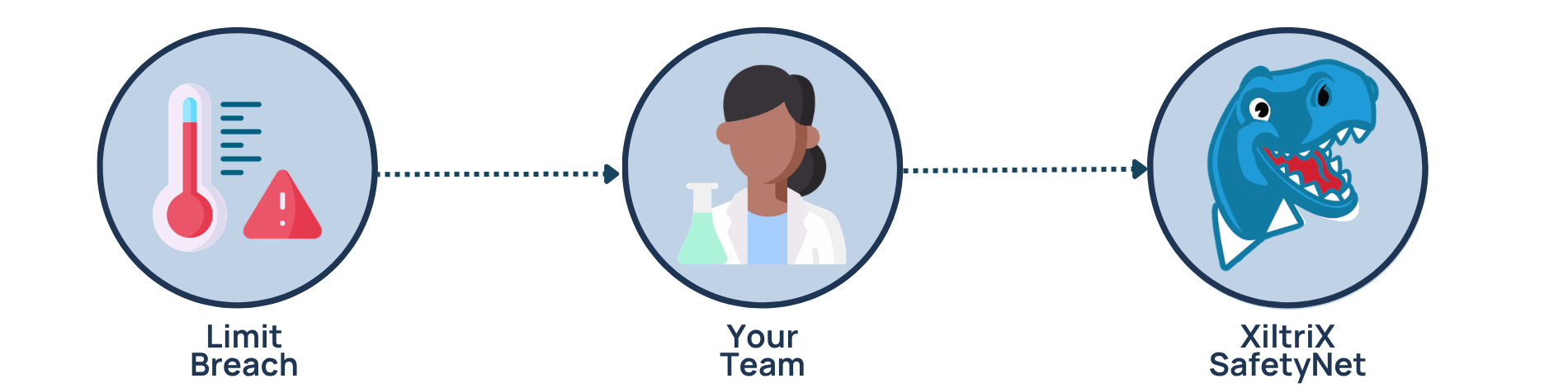
In the case of a limit breach (for example, a freezer’s temperature is too high), an automated alarm will be sent to your team via email and/or SMS. If no one on your team responds to the alarm, it will escalate to SafetyNet who will call through an emergency contact list until they reach someone.
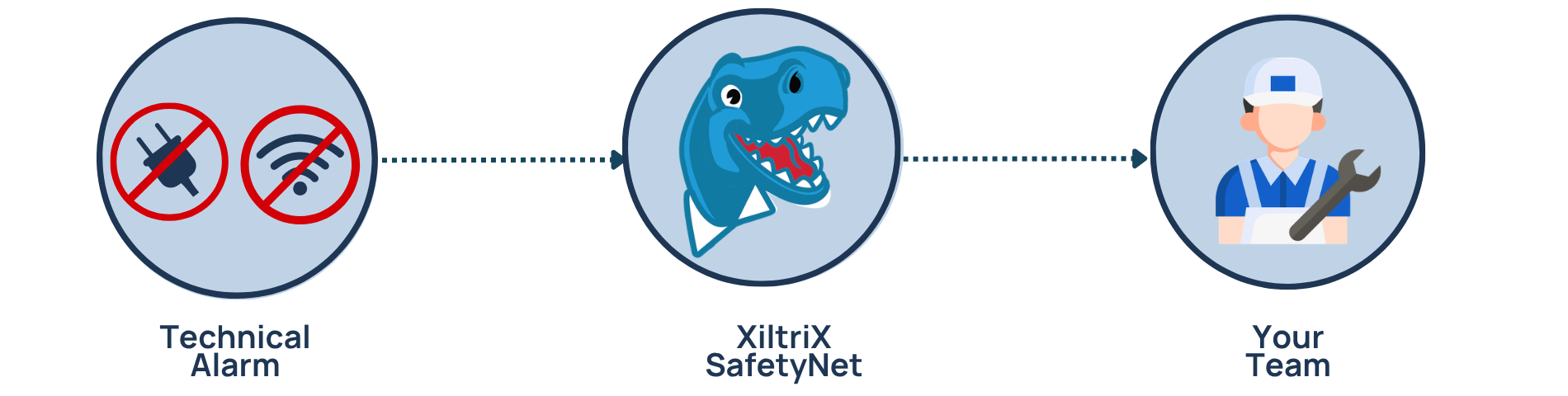
Not every alarm is an environmental concern. Technical alarms mean our system needs attention — not your samples. When one triggers, XiltriX responds immediately with remote troubleshooting and can resolve the majority of issues on our own. We'll only loop you in if we need on-site support, and we'll always work around your schedule.
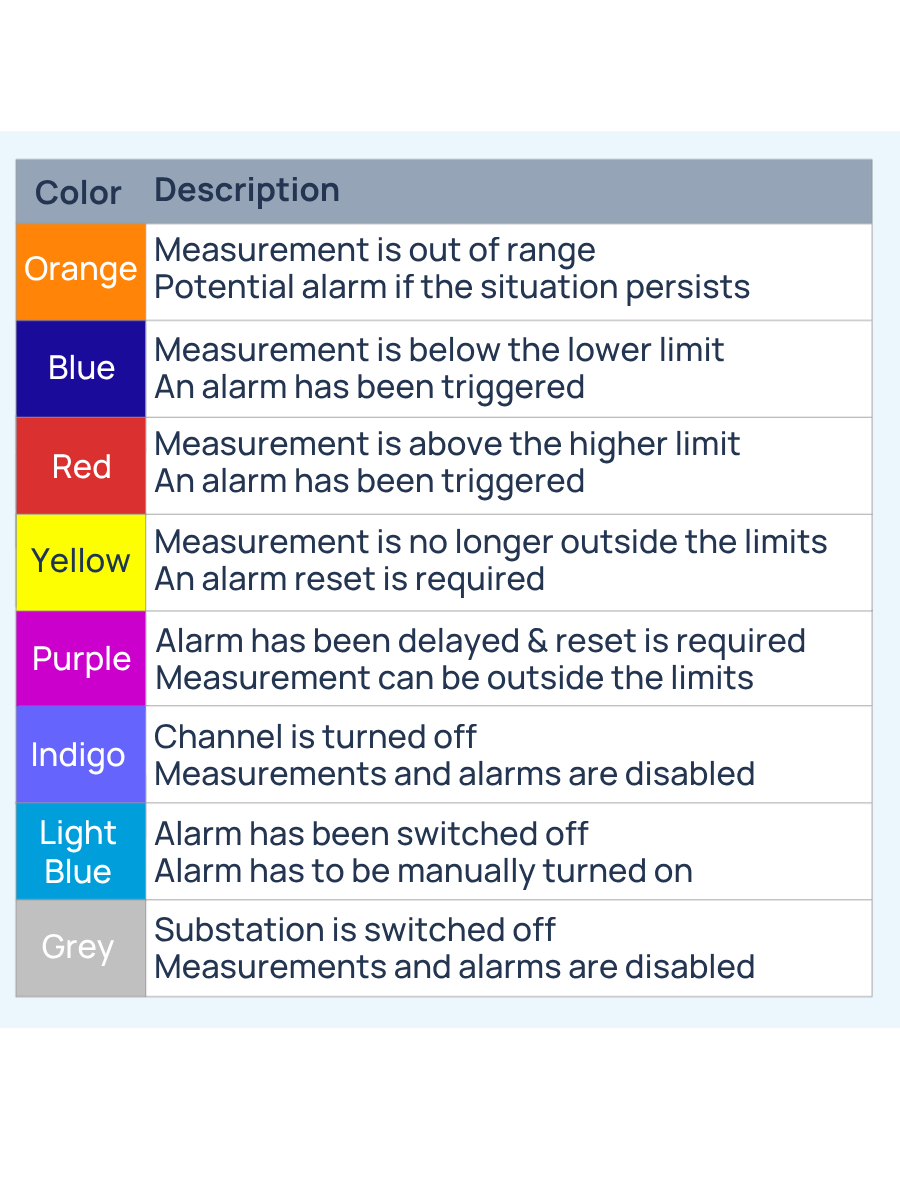
Chart of alarm types and status indicators on the main screen:
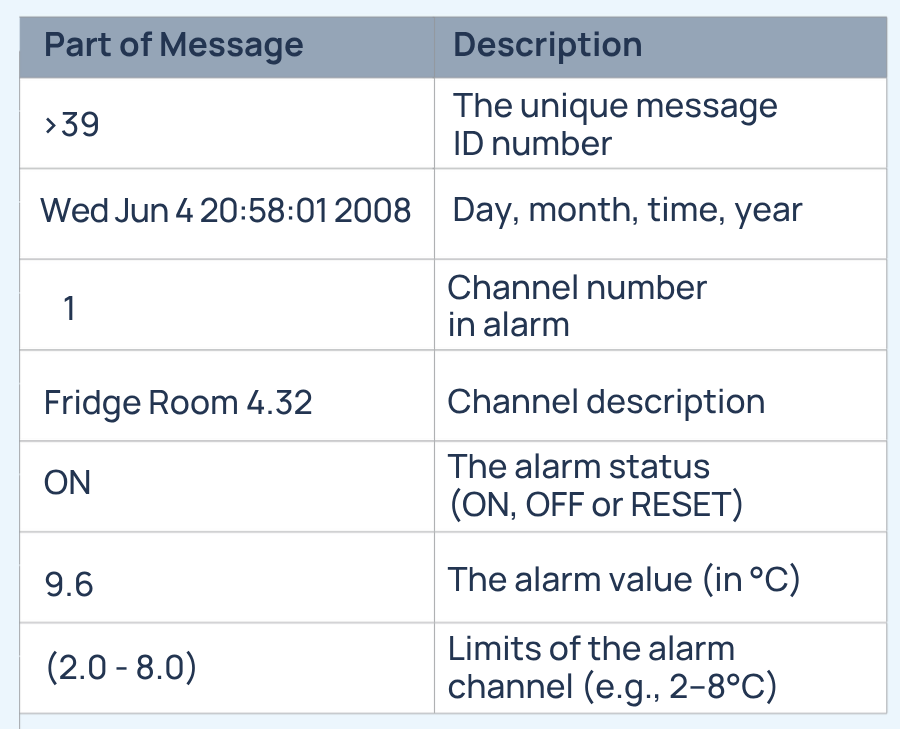
What does each part of an SMS alert mean?
>39 / Wed Jun 4 20:58:01 2008 / 1 / Fridge room 4.32 / ON / 9.6 / (2.0 - 8.0)
What should I do if I get an alarm?
1. Diagnose cause of alarm:
• Log in to XiltriX and review the channel info
• Check the sensor or device in person
2. Need more assistance?
• Contact SafetyNet
3. Log the alarm:
• Record the cause and action taken in the XiltriX Portal

SAFETYNET CONTACT INFORMATION
The XiltriX SafetyNet Team is available to support you 24/7. To get support:
• SafetyNet Portal: https://xiltrixusa.com/support– click “Submit a request”
• Email:safetynet@xiltrixusa.com
• Call & Text: (909)406-7957
Highly Recommended: Follow the instructions below to set a custom ringtone for XiltriX and bypass Do Not Disturb
-
After saving XiltriX as a contact:
Open the Contacts app
Select XiltriX
Tap Edit in the top right corner
Select Ringtone (and Text Tone)
Pick the sound you want to use (ensure it differs from your normal ringtone)
Tap Done and save
-
After saving XiltriX to your contacts:
Open the Contacts app
Tap Edit in the top right corner
Select Ringtone
Turn on Emergency Bypass at the top of the screen
Tap Done
Repeat from step 3, selecting Text Tone instead
-
After saving XiltriX as a contact:
Open the Contacts app
Select XiltriX
Tap Edit or the Three Dots
Tap Ringtone
Choose your preferred sound and save
*Exact steps may vary slightly based on manufacturer
Custom text tone:Open Messages app
Open the conversation with XiltriX
Tap the 3 dots in the top-right corner
Tap Notifications
Select Sound and save
-
After adding XiltriX to your contacts:
Go to Settings > Sound & Vibration > Do Not Disturb (Sometimes found in Settings > Notifications)
Tap People or Who can interrupt
Tap on Calls (and Messages)
Select the contact for XiltriX
For more information, log in to the SafetyNet Portal at https://xiltrixusa.com/support to access our online training library.
**Be sure to bookmark this page for easy access in the future!**