

Quick Reference Guide
Log in to your account daily to ensure everything is in “green.” This is the real-time health of your system.
How do I log in to the XiltriX portal?
1. Go to https://app.xiltrixusa.io
2. Enter your email and password and click "Log in with email." If your account is set up for single sign-on, click Sign in with Google, Microsoft, Magic Link, or SSO instead.
3. The portal opens to the last page you had loaded or to your default organization.
4. Open the avatar menu in the top right corner to confirm your organization, role, and time zone. Timestamps on graphs and reports follow the time zone set here.
5. If you need help, contact our 24/7 SafetyNet Team
Meet SafetyNet:
SafetyNet is XiltriX's team of live agents, available 24/7. They watch for alarms that your team hasn't acknowledged and can help diagnose each alert. They can also help with any support requests you have.
How Does SafetyNet Support Your Lab?
24/7 Alarm Escalation Coverage
Unlimited User Training
Operational Continuity
System Optimization
Root Cause Analysis
QC/maintenance planned? Let us know.
• Submit a notice at least 24 hours in advance at https://xiltrixusa.com/support
• Click “Submit a request” at the top right corner
There are two types of alarms that XiltriX assists with:
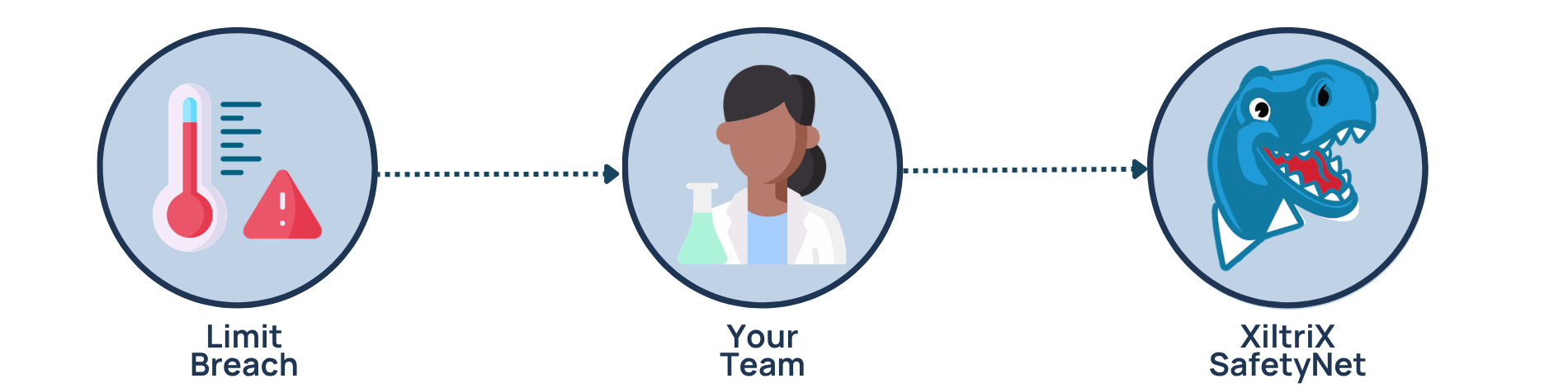
In the case of a limit breach (for example, a freezer’s temperature is too high), an automated alarm will be sent to your team via email and/or SMS. If no one on your team responds to the alarm after the alarm program, it will escalate to SafetyNet who will call through an emergency contact list until they reach someone.
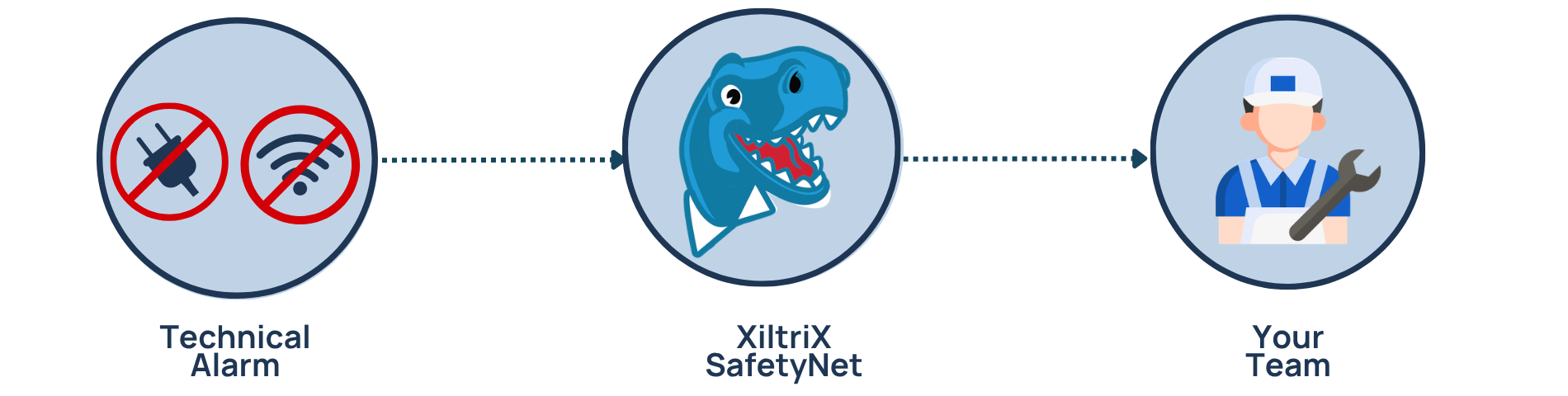
Not every alarm is an environmental concern. A technical alarm means the monitoring system needs attention, not your samples. When a technical alarm triggers, XiltriX begins remote troubleshooting and can resolve most issues without involving your team. We contact you only if on-site support is needed, and we schedule that visit around your team's availability.
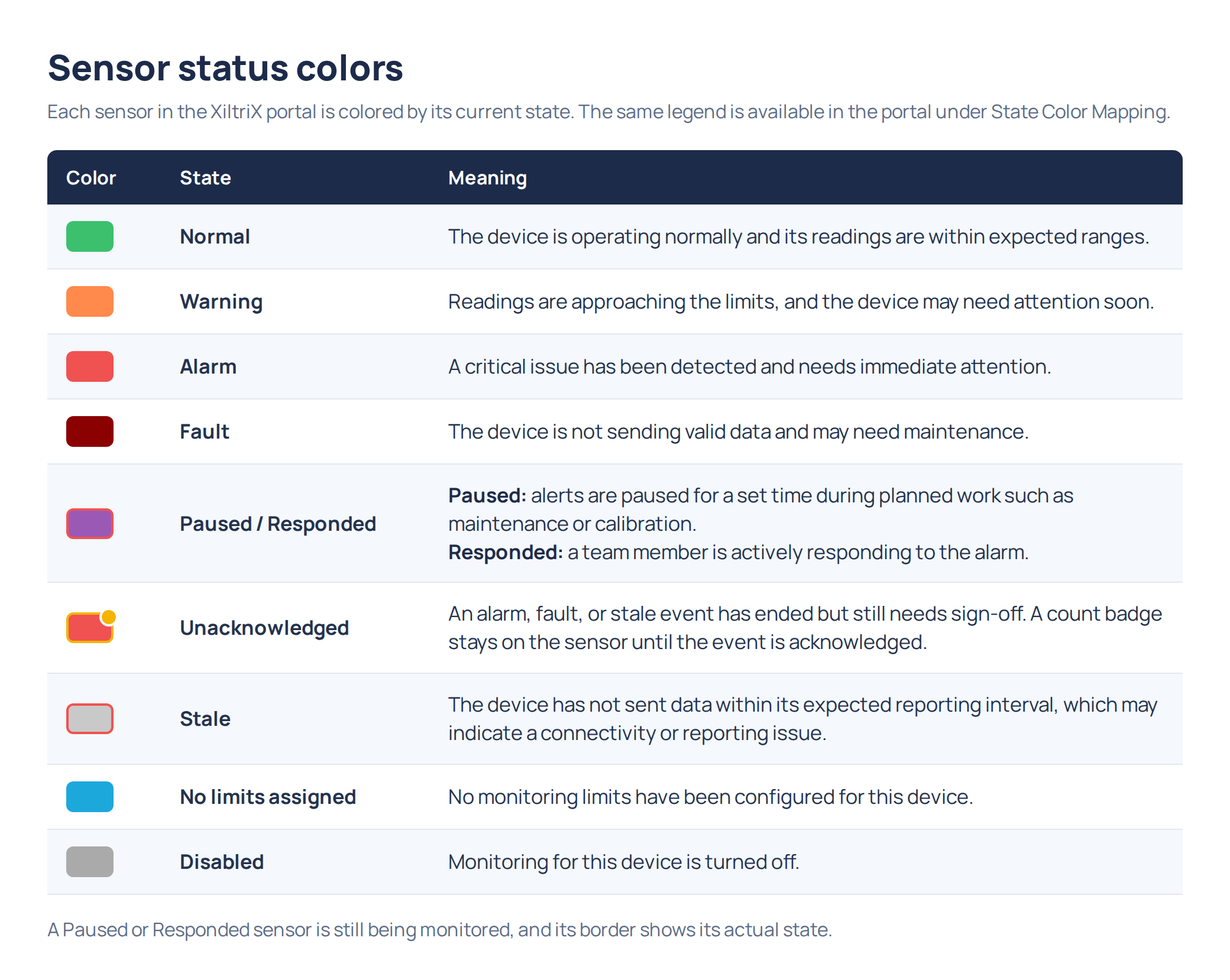
Chart of alarm types and status indicators on the main screen:
What should I do if I get an alarm?
1. Diagnose cause of alarm:
• Log in to XiltriX and review the channel info
• Check the sensor or device in person
2. Need more assistance?
• Contact SafetyNet
3. Log the alarm:
• Record the cause and action taken in the XiltriX Portal
SAFETYNET CONTACT INFORMATION
The XiltriX SafetyNet Team is available to support you 24/7. To get support:
• SafetyNet Portal: https://xiltrixusa.com/support– click “Submit a request”
• Email:safetynet@xiltrixusa.com
• Call & Text: (909)406-7957
Highly Recommended: Follow the instructions below to set a custom ringtone for XiltriX and bypass Do Not Disturb
-
After saving XiltriX as a contact:
Open the Contacts app
Select XiltriX
Tap Edit in the top right corner
Select Ringtone (and Text Tone)
Pick the sound you want to use (ensure it differs from your normal ringtone)
Tap Done and save
-
After saving XiltriX to your contacts:
Open the Contacts app
Tap Edit in the top right corner
Select Ringtone
Turn on Emergency Bypass at the top of the screen
Tap Done
Repeat from step 3, selecting Text Tone instead
-
After saving XiltriX as a contact:
Open the Contacts app
Select XiltriX
Tap Edit or the Three Dots
Tap Ringtone
Choose your preferred sound and save
*Exact steps may vary slightly based on manufacturer
Custom text tone:Open Messages app
Open the conversation with XiltriX
Tap the 3 dots in the top-right corner
Tap Notifications
Select Sound and save
-
After adding XiltriX to your contacts:
Go to Settings > Sound & Vibration > Do Not Disturb (Sometimes found in Settings > Notifications)
Tap People or Who can interrupt
Tap on Calls (and Messages)
Select the contact for XiltriX
For more information, log in to the SafetyNet Portal at https://xiltrixusa.com/support to access our online training library.
**Be sure to bookmark this page for easy access in the future!**